
In today’s fast-paced digital world, a slow laptop can be incredibly frustrating. Whether you use your laptop for work, entertainment, or both, sluggish performance can hinder your productivity and diminish your overall experience.
The good news is that there are several simple and effective ways to boost your laptop speed without breaking the bank.
In today’s fast-paced digital world, our laptops have become indispensable tools for work, communication, and entertainment.
However, as time goes on, you may have noticed a decrease in your laptop’s speed, leading to frustration and reduced productivity.
The good news is that there are numerous ways to boost your laptop’s speed and performance without breaking the bank or needing technical expertise.
In this guide, we will explore effective and best methods to revitalize your laptop, allowing you to experience a seamless computing experience once again. So, if you’re ready to unleash the full potential of your laptop and regain its lightning-fast speed, read on to discover practical tips and tricks that will breathe new life into your trusted device.
In this article, we will explore various techniques to optimize your laptop’s performance and get it running smoothly again.
Ways to Boost Laptop Speed.
1. Declutter and Organize
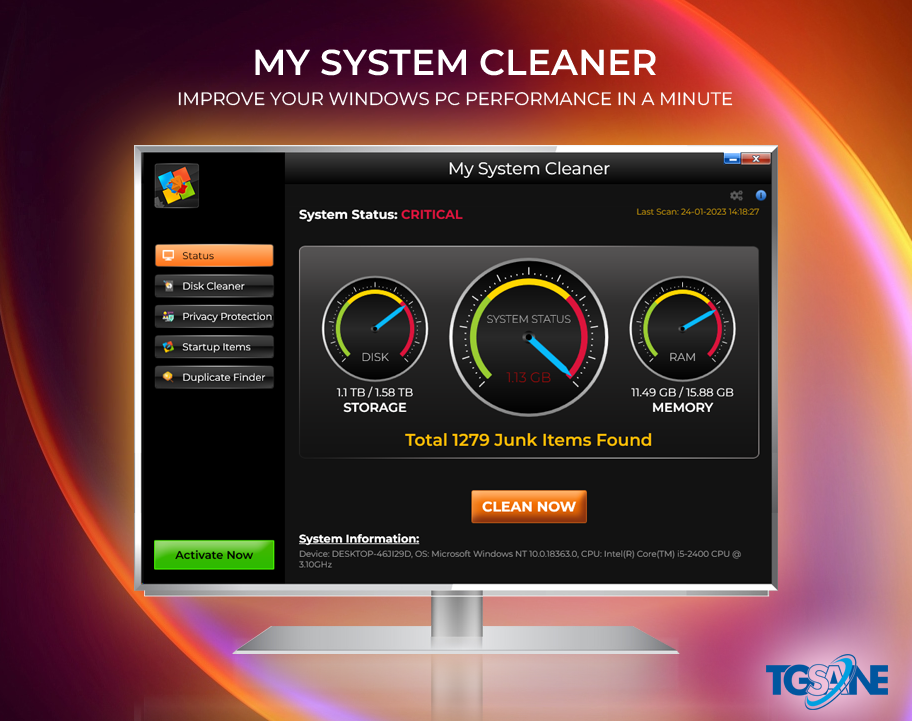
Over time, laptops can accumulate unnecessary files and programs that consume valuable system resources. Start by decluttering your hard drive and removing any unnecessary files, such as old documents, duplicate photos, and unused applications. Additionally, organize your files into well-structured folders to improve accessibility and minimize search time. Consider utilizing cloud storage or external hard drives to store large files that you don’t frequently access, freeing up valuable disk space, for this you can use third part tools like My System Cleaner, which will help you in finding the Declutter files and folders, which you can very easily see in its amazing UI and delete it according to your convenience.
2. Update Software and Drivers
Outdated software and drivers can significantly impact your laptop’s performance. Regularly check for updates for your operating system, antivirus software, and other essential programs.
These updates comes with bug fixation , important security patches, and overall performance enhancements.
Similarly, keeping your device drivers up to date is crucial. Visit the manufacturer’s website or use specialized driver update software to ensure you have the latest drivers for your hardware components.
3. Optimize Startup Programs
When you turn on your laptop, several programs may automatically launch, causing a delay in startup time. Review the list of startup programs and disable any that are not necessary. This can be done through the Task Manager (Windows) or the Activity Monitor (Mac). By reducing the number of programs that launch at startup, you can improve boot time and overall system performance. This feature is available in My System Cleaner, Through Startup Items tool you can easily identify the startup Items and remove it as per your will.
4. Increase RAM and Storage
Insufficient RAM (Random Access Memory) and limited storage capacity can significantly impact your laptop’s speed. If your laptop is struggling to handle multiple applications or large files, consider upgrading your RAM or storage. Increasing the RAM allows your laptop to handle more tasks simultaneously, while expanding storage provides ample space for files and applications. Consult your laptop’s documentation or a professional technician to determine the upgrade options available for your specific model or you can use My System Cleaner which will not only help you to clean storage but will also make sure that your laptop gets speed up.
5. Utilize Solid-State Drives (SSDs)
Replacing your traditional hard disk drive (HDD) with a solid-state drive (SSD) can have a dramatic impact on your laptop’s speed. SSDs are faster and more power-efficient than the HDDs. They offer faster boot times, quicker application launches, and improved file transfer speeds. Consider migrating your operating system and frequently used programs to an SSD to experience a significant performance boost.
6. Manage Browser Extensions
Browser extensions can enhance your web browsing experience, but having too many can slow down your laptop. Review the extensions installed in your web browser and remove any that you no longer use or need. Additionally, ensure that your browser is up to date to take advantage of performance improvements and security patches.
7. Perform Regular Maintenance
Regular maintenance tasks can keep your laptop running smoothly. These tasks include disk cleanup, disk defragmentation (for HDDs), and system optimization. Windows users can utilize built-in tools like Disk Cleanup and Disk Defragmenter, while Mac users can utilize the Disk Utility application. Furthermore, consider running periodic scans with reputable antivirus software to identify and remove any malware that may be affecting your laptop’s performance. Manually it will take time, instead of it you can use a Paid tool My System Cleaner, which has Disk Cleaner Tool, which will help you to identify the unwanted files and folders.
Conclusion
By following these simple yet effective tips, you can give your laptop a significant speed boost and optimize its overall performance. Remember to regularly declutter and organize your files, keep your software and drivers up to date, optimize startup programs, upgrade hardware components if needed, and perform routine maintenance tasks. With these strategies, you can enjoy a faster and more efficient laptop experience, boosting your productivity and satisfaction. My System Cleaner comes with a complete package of tools which will easily boost your laptop. Enjoy Lightning speed with My System Cleaner at a affordable Price.